Text to speech for PDFs on Mac, iPhone, and iPad
ONarrator reads any PDF aloud with natural voices that run on your device. It skips the headers and page numbers that make most PDFs sound broken, reads scanned pages too, and highlights each word as it's spoken. Free, with no account.
How to read a PDF aloud
- Add the PDF. Drag it into ONarrator on a Mac, or choose it from Files on iPhone and iPad. On a Mac, a whole folder becomes a collection.
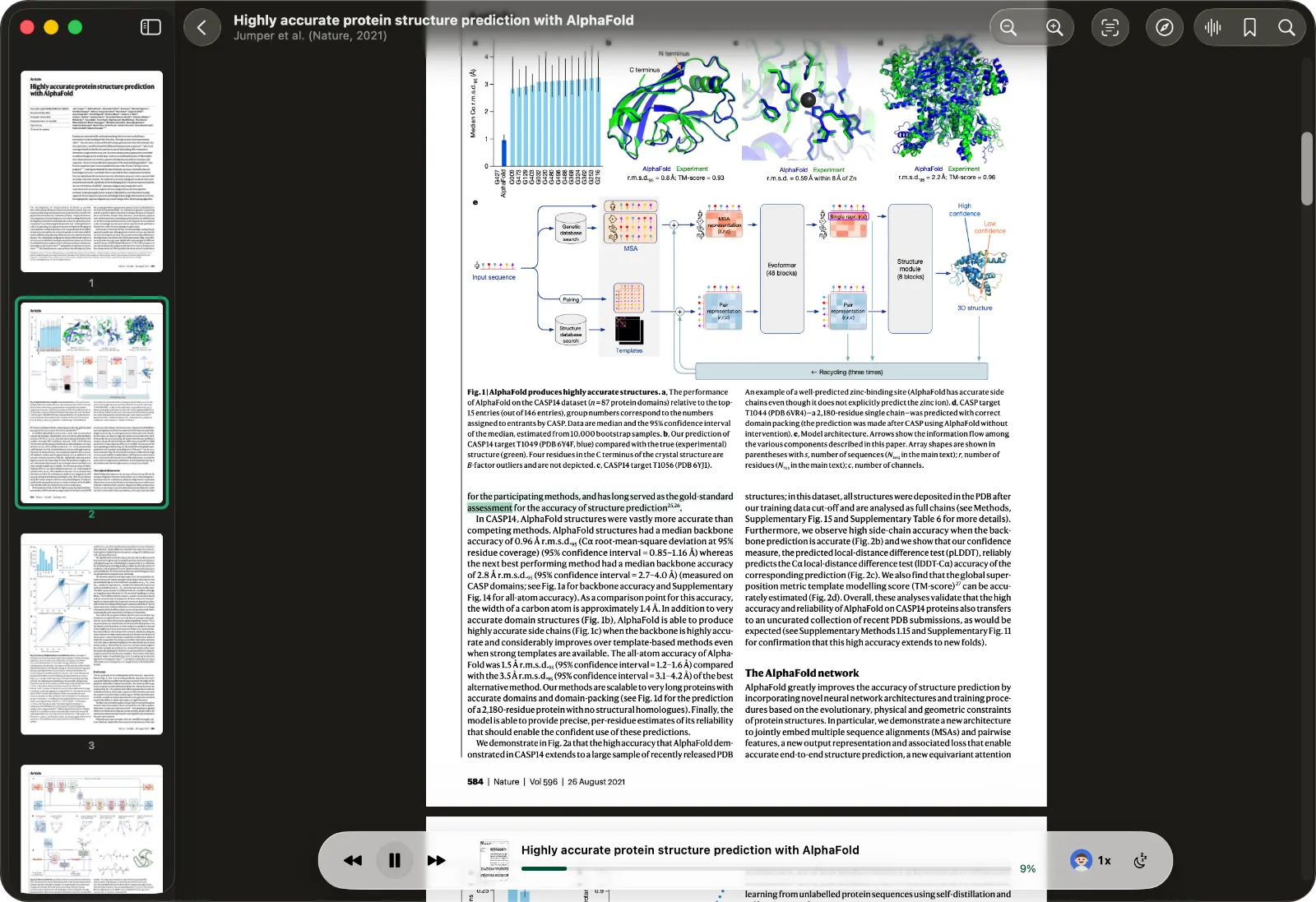
- Press play, or tap a sentence. Narration starts wherever you tap, and each word is highlighted as it's read.
- Pick a speed. From 0.5× to 2× in steps of 0.1, with one-tap presets at 0.8, 1, 1.3, 1.5, and 2.
- Generate the audio before you go. Generate Audio prepares the whole document ahead of time, so it plays offline and never stops to catch up.
It reads the text, not the page around it
A PDF stores where to draw each piece of text, not what that text is. So most readers read everything in the order they find it: a sentence, then a page number, then the journal's name from the running header, then a figure caption, all in one breath.
Before ONarrator reads a PDF, a layout model looks at every page on your device and labels each block. Titles, headings, body text, and lists are read. These are skipped by default:
- running headers and footers
- page numbers
- figures and their captions
- tables
- displayed equations
- the reference list
- notes in the margin
Each one is a switch. Set them once for your library, or change them for a single document, for example to hear the captions of one figure-heavy report. When the model isn't sure about a page, ONarrator reads it rather than risk skipping text you need.
For papers in particular, see how to listen to research papers.
Scanned PDFs work too
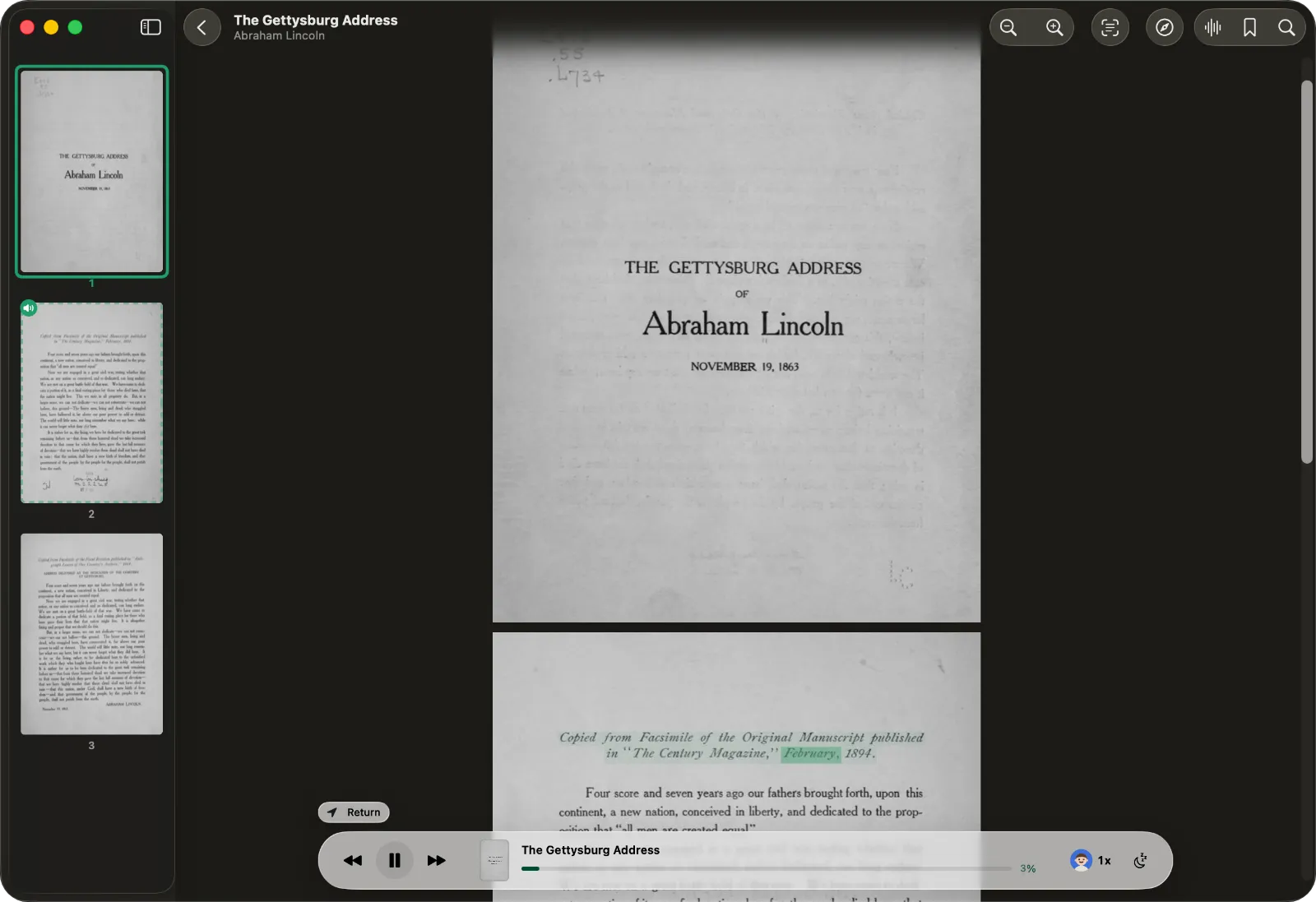
Older documents are often scans: pictures of pages with no text inside. ONarrator notices a page without text and recognizes it on the device with Apple's Vision framework, then reads it with the word highlighted like any other page.
Turn a PDF into an audiobook
Once the audio is generated, you can export it as an M4B audiobook and play it in any app that reads them. Chapters come from the PDF's table of contents, or one per page when there isn't one.
Your PDFs stay on your device
Contracts, drafts, medical letters, and papers under review never leave your Mac, iPhone, or iPad. Speech is made on the device, the voices ship with the app, and there is no account, no analytics, and no ads. It reads PDFs in 31 languages and detects which one each document is in.
What doesn't work well yet
- Two-column pages can read out of order. Blocks are read top to bottom, then left to right, so some two-column papers jump between columns too early.
- Math inside a sentence is read as symbols. Displayed equations are skipped; inline formulas are spoken character by character.
- The first open can read everything. The layout pass takes a moment on a new PDF. Press play straight away and it may read the whole page until the pass finishes.
Questions
Is ONarrator's PDF text to speech free?
Yes. ONarrator is free on the App Store for Mac, iPhone, and iPad, with no subscription, no account, and no limit on how much you listen. There is an optional tip jar.
Does it read PDFs aloud offline?
Yes. The voices ship with the app and run on your device, so a PDF already in your library plays without a connection. Generate Audio prepares a whole document ahead of time.
Can it read scanned PDFs?
Yes. A page that is a picture of text is recognized on the device with Apple's Vision framework and then read like any other page. Recognition runs while the app is open, and Vision does not read Hindi, Greek, Hebrew, or Bengali.
Can I turn a PDF into an audio file?
Yes. After the audio is generated, you can export it as an M4B audiobook. Chapters come from the PDF's table of contents, or one per page if it has none.
Which languages can it read?
31, including Spanish, French, German, Japanese, Hindi, and Arabic. ONarrator detects the document's language and picks a matching voice. Chinese is not supported yet.
Does it skip headers, footers, and page numbers?
Yes, by default. A layout model labels each block on the page, on your device, and running headers, footers, page numbers, captions, tables, displayed equations, references, and margin notes are skipped. Each one is a switch you can turn back on.
Further reading
Try ONarrator
Listen to your next PDF.
Free on Mac, iPhone, and iPad. No account needed.