Turn a PDF or EPUB into an audiobook on Mac, iPhone, and iPad
ONarrator turns a PDF or a DRM-free EPUB into an M4B audiobook with chapters, right on your Mac, iPhone, or iPad. It's free, nothing is uploaded, and there is no account.
What you get
- One M4B file with chapters. M4B is the audiobook format, so an app that plays audiobooks shows the chapter list and lets you skip between them.
- The voices you listen to in the app. The audiobook is made from the same audio ONarrator plays when it reads to you, in the voice you generated it with. There are 38 voices, and they speak 31 languages.
- The title and the author. The file carries the document's title, and its author when the document names one.
- Nothing uploaded. The speech is made on your device and the file is put together there too. There is no server and no account.
How to make the audiobook on iPhone and iPad
- Add the PDF or EPUB. Tap + at the top of Home, then Attach and Choose File. Pick the file in Files, on the device or in iCloud Drive, and tap Open.
- Choose the voice. Tap the voice in the player to open the voice and speed panel. Pick the voice before you generate, because the audiobook is made from that audio.
- Choose Audio from the reader's ⋯ menu, then tap Generate. The panel says what it will make and how much storage the audio will take. A long book takes a while.
- Tap Export in the same panel. When “Audiobook Ready” appears, tap Share to save the M4B file to Files or send it to another app.
How to make the audiobook on Mac
- Add the PDF or EPUB. Click + in the library toolbar, or press ⌘N. Drag the file onto New Reading, or click Attach and choose it, then click Add & Open.
- Choose the voice. The voice and speed control sits on the right of the player. Pick the voice before you generate.
- Click the waveform button in the reader's toolbar, then Generate. This is Generate Audio. It shows what it will make and how much storage it needs.
- Click Export in the same panel. Choose where to save the file. It is named after the document's title and ends in .m4b.
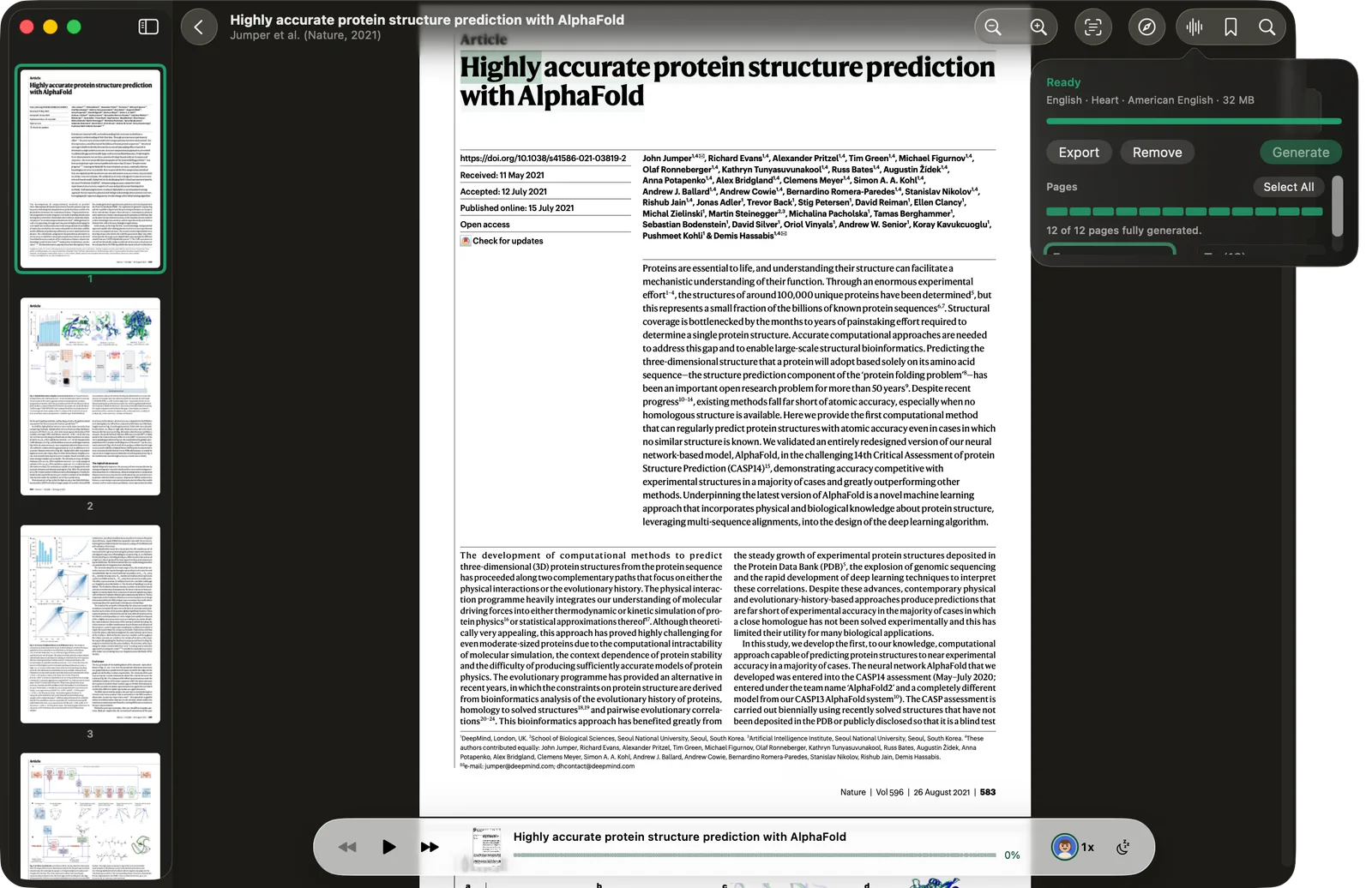
You don't have to generate everything at once. Generate Audio can make the whole document, the part from where you are to the end, or just the chapters or pages you choose. Export then uses the audio that exists.
From a PDF
A PDF is laid out for paper, with a page number, a running header, and often a reference list on every page. ONarrator's Smart Reading skips those: a layout model on your device labels each block on the page, and headers, footers, page numbers, captions, tables, displayed equations, references, and footnotes are left out of the reading, along with numbered citations like [12]. It's built for research papers. The audiobook holds only what is read, so none of that is in it. Each kind is a switch under Smart Reading if you want it back.
Each page of a PDF becomes a chapter, named “Page 1,” “Page 2,” and so on, so you can find your place by page number. The PDF's own outline is not used for chapters. To make part of a PDF into an audiobook, type a page range in the Generate Audio panel.
Scanned pages work too. A page that is a picture of text is recognized on your device first, then read and exported like any other page. On iPhone and iPad, keep ONarrator open while a scan is recognized. More in reading scanned PDFs aloud.
From an EPUB
The EPUB has to be DRM-free. Many stores lock the books they sell to their own app with DRM, and ONarrator can't read a locked book: it says “This EPUB is encrypted and can't be imported.” Books that only scramble their fonts, as some publishers do, open normally. Kindle books are not EPUBs and don't open. Fixed-layout EPUBs, made page by page like a picture book, don't open either.
Chapters come from the book's own table of contents, with their titles, so the audiobook's chapter list matches the book's. Anything before the first chapter goes under a chapter named after the book. To make only part of a book, select chapters in the Generate Audio panel and generate those.
Need a book to start with? Discover, inside the app, offers free public-domain books from Project Gutenberg and Standard Ebooks. For more on listening to EPUBs, see how to listen to EPUB ebooks.
Limits
- M4B is the only format. There is no MP3 export.
- The audio is generated first. Export packages audio that already exists, and generating a long book takes time and storage. The panel says how much storage before you start.
- Missing audio is skipped, not filled in. If part of the document has no audio, ONarrator asks before it exports: “Export incomplete audio?” Choose Export Cached Portion and the gaps are skipped. A chapter with no audio is left out.
- Kindle books and DRM-protected EPUBs don't open, so they can't become audiobooks.
- PDF chapters are pages. A PDF's outline does not become the chapter list.
- There is no cover art in the file. It holds the title and author only.
- 2× is the top speed when you listen in the app; speed goes from 0.5× to 2× in steps of 0.1.
For every fact and limit in one place, see ONarrator at a glance.
Questions
Is it free?
Yes. ONarrator is free on the App Store for Mac, iPhone, and iPad, with no subscription, no account, and no ads. Export is included. Optional tips unlock nothing.
Is there a length limit?
No. Nothing is metered, so a long book is fine; it just takes longer to generate. The audio in the file is mono AAC at 64 kbps, about 29 MB for each hour of listening.
Can I get an MP3 instead?
No. M4B is the only export format. An M4B is an audiobook file: the same kind of audio as an M4A, with chapter markers, so a player can skip from chapter to chapter.
Which apps play M4B files?
Apps that play audiobooks. Open the file in your audiobook player of choice and the chapter list comes with it.
Does it work offline?
Yes. The voices ship inside the app, and both generating and exporting happen on your device, so a document already in your library becomes an audiobook with no connection.
Does it work for web articles and pasted text?
Yes. Generate Audio and Export are in the reader for every kind of document, so an article or a text file can become an M4B too. Its chapters come from its headings, when it has any.
Further reading
Try ONarrator
Make your first audiobook.
Free on Mac, iPhone, and iPad. No account needed.