Scanned PDF text to speech: hear scanned pages read aloud
ONarrator reads scanned PDFs aloud on Mac, iPhone, and iPad by recognizing the text on your device. It's free, nothing is uploaded, and there is no account. Each word is highlighted as it's spoken, just as on any other PDF.
Why most readers stay silent on a scanned PDF
A scanned PDF is a picture of a page. The words you see are pixels, and there is no text inside the file for a voice to read.
Read-aloud tools need that text. So on a scan, most of them have nothing to say. To get the text, a tool first has to recognize it in the picture, and some do that by sending your file to a server. Your document leaves your device to be read.
How ONarrator reads a scan
ONarrator checks each page of a PDF for text. A page with none is a scan, and only those pages are recognized. It uses Apple's Vision text recognition, which is part of macOS and iOS, so there is nothing extra to download.
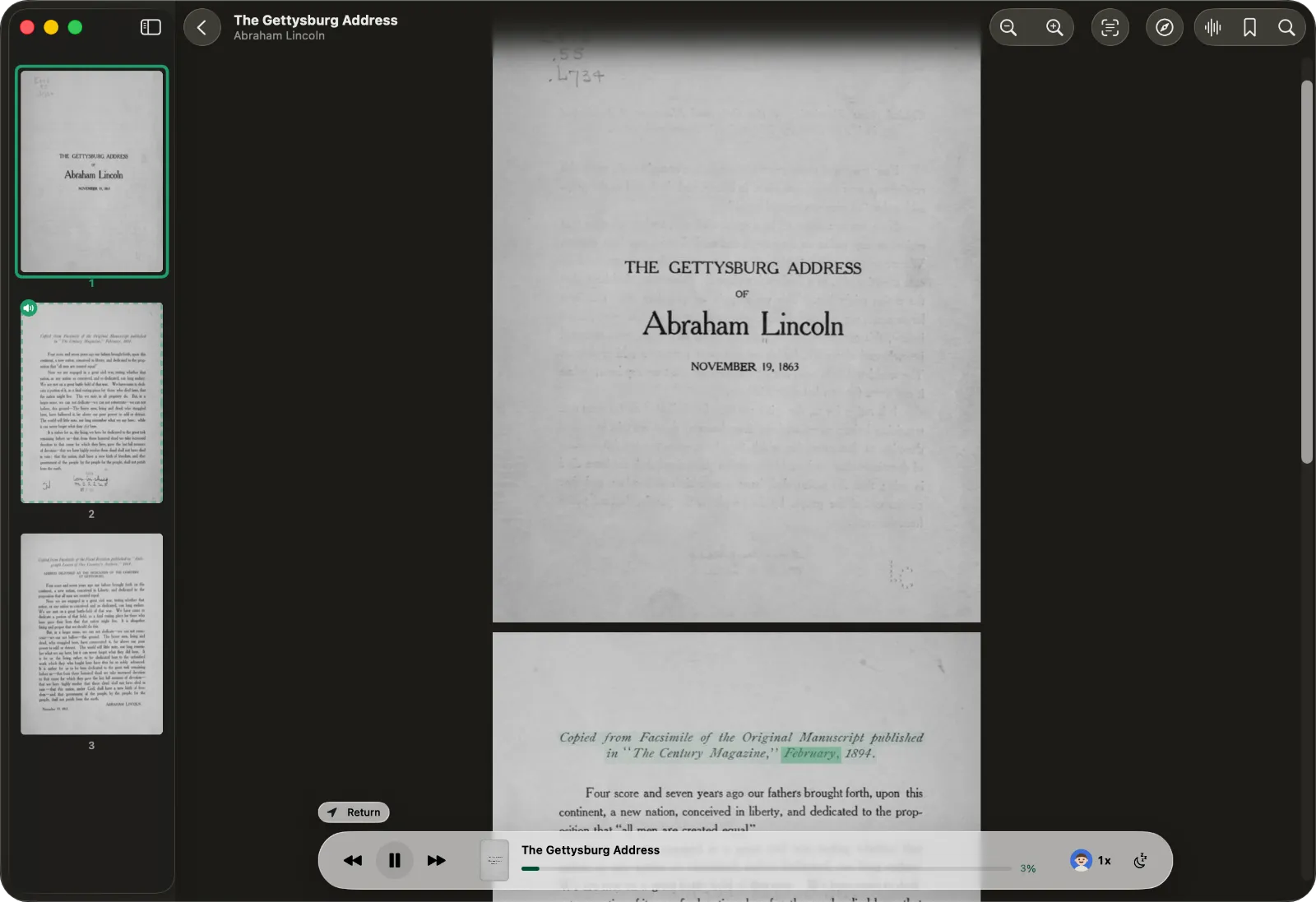
Then the scan is read like any other page. The sentence and the current word are highlighted as the voice reaches them, and you can tap or click a sentence to play from it. The same layout model that skips running headers and page numbers on other PDFs works on scanned pages too.
The recognized text is kept on your device, so a scan isn't recognized again each time you open it.
How to listen to a scanned PDF
- Add the PDF. On a Mac, drag it into ONarrator or choose it from a file picker. On iPhone and iPad, choose it from Files. A folder of PDFs can be added as one collection.
- Let it read the scan. The pages show straight away. While they're being recognized, a note over them says “Reading the scan” and which page it has reached, such as “Page 14 of 236.” There is nothing to press; the text arrives on its own.
- Press play. You don't have to wait for the whole document. The first few pages become playable first, and more join as recognition goes on. Tap or click a sentence to start from there.
Some PDFs mix scanned pages with normal ones. Only the scanned pages are recognized; the others are read from their own text.
If a scan won't read
- The scan is in Hindi, Greek, Hebrew, or Bengali. Apple's text recognition can't read these scripts, so ONarrator can't read these scans. Rather than read out gibberish, it says it can't read the scan's language. A Read Anyway button is there if you want to hear the result regardless. A PDF in Hindi or Greek that has real text in it is read normally.
- Recognition stopped when you left the app. On iPhone and iPad, scanned pages are recognized only while ONarrator is open on screen. Switch to another app and recognition stops; come back and it starts again. On a Mac, it keeps going while the app is open.
- Nothing was recognized. If recognition finds no text on the scanned pages, ONarrator tells you instead of staying silent. The scan may be too faint, too skewed, or handwritten.
- The PDF already has hidden text. Some scanners and PDF tools add an invisible text layer behind the picture of the page. ONarrator reads that layer as it is and doesn't recognize the page again, so a poor hidden layer makes a poor reading.
Which languages a scan can be in
A scanned page can be in any language that Apple's text recognition supports on your device. ONarrator lets it detect the language on its own. Scans in Hindi, Greek, Hebrew, and Bengali can't be read.
Once the text is recognized, it's read with a voice for its language when that language is one of ONarrator's 31. Text in any other language is read with Apple's built-in system voices.
What stays on your device
Nothing is uploaded. Text recognition runs on your Mac, iPhone, or iPad, and so does the speech: the voices ship inside the app. The recognized text is stored on your device too. There is no account, no analytics, and no ads.
For everything ONarrator keeps on your device, and the little it asks the network for, see ONarrator at a glance.
Questions
Is it free?
Yes. ONarrator is free on the App Store for Mac, iPhone, and iPad, with no subscription, no account, and no ads. Optional tips unlock nothing; everything is free.
Does it need an internet connection?
No. Text recognition is part of macOS and iOS, and the voices ship inside the app, so a scanned PDF in your library is recognized and read without a connection.
Does it work on iPhone and iPad?
Yes, the same way it does on a Mac. Keep ONarrator open while a scan is recognized. Once the pages are recognized, listening keeps going while you use other apps.
Can I export a scanned PDF as audio?
Yes. Generate the audio first, then export it as an M4B audiobook. Each page becomes a chapter.
Can it read a photo or a picture file?
No. ONarrator opens PDFs, not image files or photos, and it has no camera scanning. A photo of a page that is saved inside a PDF is read like any other scan.
Further reading
Try ONarrator
Listen to your next scan.
Free on Mac, iPhone, and iPad. No account needed.