How to make your Mac read text and PDFs out loud
Your Mac can read any text aloud with one shortcut. How to turn it on, where it stops with long PDFs, and how to hear a whole document without the clutter.
Your Mac can already read text out loud. Turn on Speak selection in System Settings, select some text in any app, and press Option-Esc. That works for an email, a web page, or a paragraph of a PDF, and it costs nothing.
It works less well for a whole document. This guide shows the built-in way first, then where it stops, then what a reading app adds for long PDFs and books.
The built-in way: Speak selection
- Open System Settings and click Accessibility in the sidebar.
- Click Read & Speak. On macOS Sequoia and earlier, this is called Spoken Content.
- Turn on Speak selection.
- Select text in any app and press Option-Esc. Press it again to stop.
If nothing is selected, the Mac reads the text it finds in the front window. A small controller appears while it speaks. It lets you pause, change the speed, and skip back or forward a sentence. Apple's steps are in Have your Mac speak text that's on the screen.
A few settings are worth knowing:
- Shortcut. Click the info button next to Speak selection to pick a different key combination.
- Highlighting. The same panel can highlight each word, each sentence, or both while the Mac speaks.
- Voice. Choose it from the System voice menu in Read & Speak. The info button next to it lists more voices to download, and a downloaded voice sounds noticeably better than the default (Apple).
- Speak announcements is a different feature. It reads alerts and notifications, not documents.
In Preview and other apps
Many Mac apps, Preview among them, also have a speech menu. Select the text, then choose Edit > Speech > Start Speaking. Choose Stop Speaking to end it. This uses the same system voice as Speak selection.
Where the built-in way stops
Speak selection reads exactly what you give it. That is a strength for a paragraph and a problem for a forty-page PDF.
- You drive it. It reads a selection or a window, then stops. It doesn't turn the page for you or remember where you were the next day.
- It reads everything on the page. A PDF doesn't label its parts, so the running header, the page number, the footnotes, and the figure captions all get read, in the middle of your sentences.
- Saving audio is basic. The Services menu has Add to Music as a Spoken Track, and
the
saycommand in Terminal can write an audio file. Both read plain text from top to bottom, with no chapters and no cleanup of the page. - The voices suit short passages. Over a long chapter, even the better downloadable system voices can start to sound flat.
For a short passage, none of this matters. For a report, a paper, or a book, it adds up.
Reading a whole document with ONarrator
ONarrator is a free reading app for Mac, iPhone, and iPad. There is no account and no subscription, and everything runs on your Mac, so your files are never uploaded. It needs macOS 26 or later.
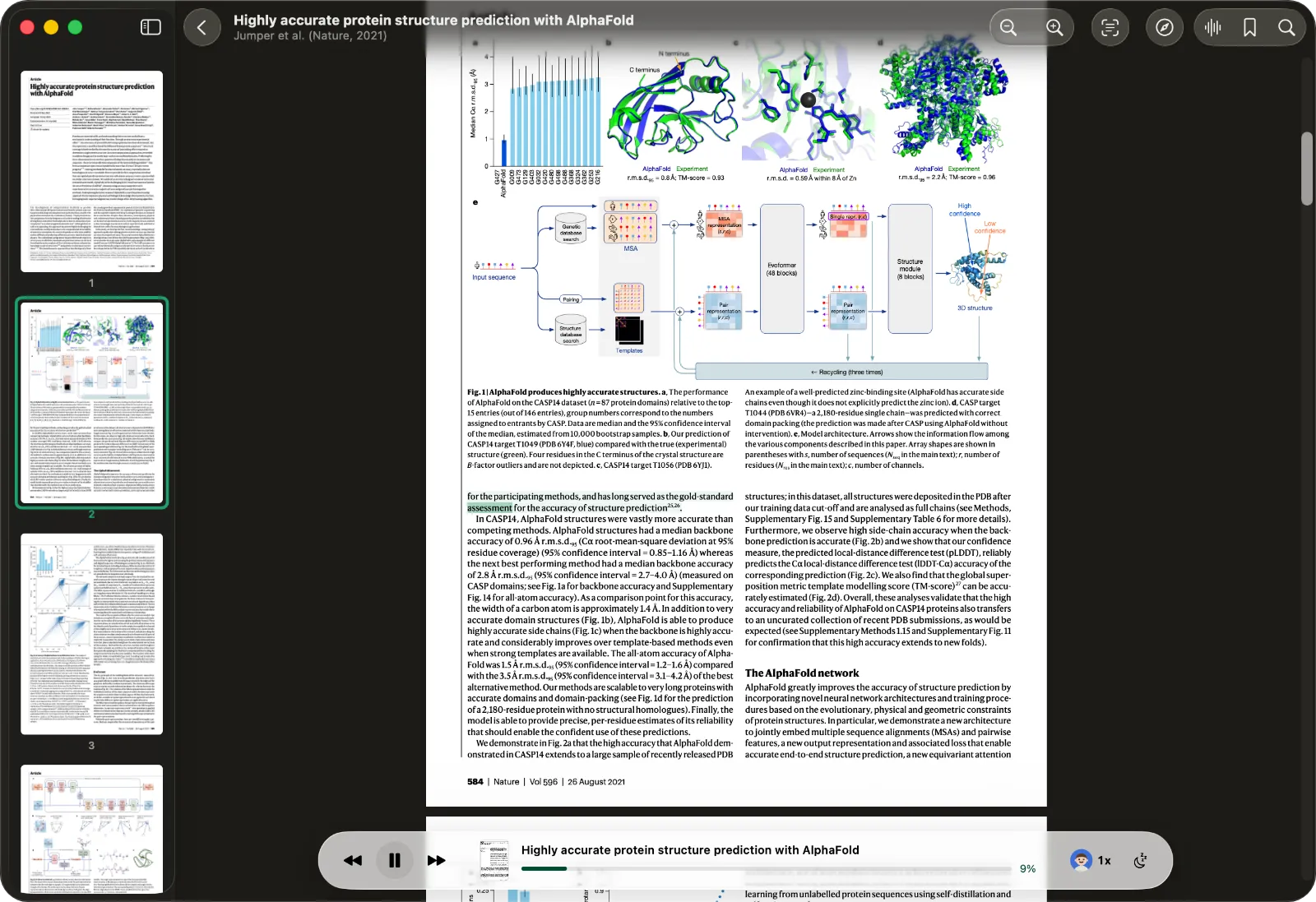
It reads the whole document. Add a PDF, an EPUB, a Word file, or a text file, or paste a web link or some text. Press play, or click any sentence to start there. It carries on page after page and keeps your place for next time.
It skips the page clutter. Before it reads a PDF, a layout model looks at each page, on your Mac, and labels every block. Headers and footers, page numbers, captions, tables, formulas, references, and footnotes are skipped by default. Each one has its own switch if you want it read. How this works on research papers goes into the details, including what still goes wrong.
It highlights the word being spoken, in the page itself, so you can follow along or look away and find your place again.
The voices work offline. They come inside the app and run on your Mac, so nothing needs downloading and nothing needs a connection. ONarrator picks the voice from the document's language, in 31 languages. You can set the speed from 0.5× to 2×.
It can make an audiobook. Generate the audio for a document, then export it as an M4B file with chapter markers, to play in Apple Books or any audiobook player. PDF and EPUB to audiobook has the steps.
For setting up a PDF step by step on Mac, iPhone, or iPad, see text to speech for PDFs.
Which to use
- A paragraph, an email, or a web page: select it and press Option-Esc. Nothing to install.
- A long PDF, a book, or anything you want to listen to away from your desk: use an app that reads the whole document, skips the clutter, and can save the audio.
Questions
What is the shortcut to make a Mac read text?
Option-Esc, once Speak selection is on in System Settings > Accessibility > Read & Speak. Press it again to stop. You can change the shortcut with the info button next to Speak selection.
Can a Mac read a PDF out loud without an app?
Yes. Open the PDF in Preview, select the text, and press Option-Esc, or choose Edit > Speech > Start Speaking. It reads what you selected, headers and page numbers included.
Why doesn't Option-Esc do anything?
Speak selection is probably off. Turn it on in Read & Speak (Spoken Content on older macOS). If it is on and nothing is selected, the Mac reads the front window's text. If the window has no text it can read, you'll hear a short sound instead.
Can I save what my Mac reads as an audio file?
The built-in tools can save plain text as audio, through the Services menu or the say
command. ONarrator exports a whole document as an M4B audiobook with chapters.
Does ONarrator work offline?
Yes. The voices, the layout model, and the text recognition for scanned pages all run on your Mac. Once a document is in your library, it reads without a connection.
What does it cost?
Nothing. ONarrator is free, with no account and no subscription.
On an iPhone or iPad instead? Text to speech for PDFs covers those too. For books, see how to listen to an ebook you already own.
Try ONarrator
Listen to your next read.
Free on Mac, iPhone, and iPad. No account needed.